Wednesday, August 14, 2013

Predict Wind Tracker

Application: iPhone, iPad, iPod Touch, Android Devices too!
Function: Real time sailboat tracking and playback
Rating: ****
Cost: Free for one week trial, $3.00 for 3 months tracking.

Jon Bilger and his Predict Wind team have been busy and have recently introduced an update to the Tracker App for the sailboat racing crowd. 

The Tracker App is designed to record the GPS tracks of all entries in a sailboat race. The participants and spectators can then see their progress and tracks on a Google map in real time.  Each participant must have the app running on their Android or iPhone.  The app records the track position data and sends it via the cell connection back to the Predict Wind Tracker site.

The data can then be viewed in real time or after the fact using the app or website.

This app can be used for other activities in addition to sailing. If your a biker, hiker, runner or kayaker and want to record your track it will do that too. So it is not just limited to sailing.

The app provides the contestants and spectators a fun and easy way to track and participate in the action.

Features:
  • Record the track of your sailboat in personal tracking mode
  • Record tracks of all sailors in a sailboat race
  • Races can be set up in Division, Heats and Classes
  • Spectators can view tracks of all boat in a race
  • Search for specific boats by name
  • Replay a race to improve your strategy and tactics
  • Race committee boats can track boat in real time.
  • You can also setup your own personal tracking, and share a web link with friends to watch your progress in real time.
  • Google Maps tracking
  • Event organizers can monitor the progress of race participants
To view a sample race please go to this test link http://forecast.predictwind.com/tracking/race/nzmyc. It appears to be a race in New Zealand.  To get your yacht club registered simply email the company at support@predictwind.com. They do require that you have a Yacht Club website so you can promote the use of the Tracker and Predict Wind apps.

The Tracker app has a free one week trial to record your GPS tracking data. After the trial period you can make an in-app purchase which will cost you $3.  This provides you unlimited tracking in any race for a 3 months period. 


Racers Instructions:

The app is very easy to use. All you have to do is make a few selections within the app and your on the way to recording your track. Open up the app and first select your Yacht Club, Race, and Division. Then enter the name of your Boat. The race and division data should be provided by your race officials.

The Race and Divisions are set up by the yacht club race administrator on the Predict Wind Tracker website.  Multiple divisions, heats and races can be set up for a regatta. Various other timing settings and track record update rates are set here too.

On the day of the race all you have to do is take your phone with you on the boat.  Prior to the start of the race make sure you have the correct race and division selected and then turn "Tracking On".

Track recording takes a lot of battery power so make sure your battery is fully charged.  To conserve battery life make sure to turn off both WiFi and Bluetooth. Turn off any other apps that may be running in the background by tapping the home button twice and holding your finger on an app icon until it starts wiggling. Select the - sign on the app to turn them off.

The data usage for the App is approximately 1 MB for a race day.  Continued use of GPS running in the background can dramatically decrease battery life. Once the race it done make sure to turn Tracking OFF.

For more detailed instructions please visit www.predictwind.com/tracker

Spectator Instructions:

The unique thing about this app is that it gets spectators involved in the racing action.  Although sailboat racing can be about as boring as watching golf, this is one way to make it a little more fun. Viewing of all race data is free to the spectators. Open the App and select your Yacht Club and Race.

Click on the button "View Tracking" to see the race data.  On the map view select the proper Division to see all the tracks in real-time.  The slider at the bottom of the screen can be used to replay the race or move to any point in the race.
A handy search box is supplied to find the position and track of a friends boat or locate their most recent track update.

This app can only help improve the interest in sailing.  Spectators can now feel like they are part of the racing
action. They now have the ability to watch and track the positions and progress of all boats in real time.


Personal Tracking:

If your not in a race but just want to record your GPS tracking data you can do this with personal tracking. In the Yacht Club selection select the Personal Tracking option. This will allow your to record your tracks if your out for just an afternoon sail.

In the View Tracking map screen you can then select the Share option on the top menu bar to view a link of your recorded track. One feature that would be nice is the ability to automatically email or post this link to Facebook or Twitter. Perhaps this could be added in future updates

The Tracker app seems to work great.  I have used it a few time while out sailing and it is easy to use. Just make a few selections, turn it on and forget it until you return.  You can then view your tracks within the app or on a PC through your Predict Wind account.

I am the Commodore of  our local yacht club and will be testing this with some of our sailors in future races.  I am excited about getting spectators involved in watching the race action in real time or after the fact.

The Predict Wind Tracker app is truly unique. It is well worth the $3 buck to have the ability to track your self and others without some costly and sophisticated GPS tracking hardware.

~~~~ Sail On ~~~ /)  
Mark


Sunday, August 4, 2013

MyNOAACharts

Application: Android Tablets
Function: NOAA Marine Chart displays and GPS tracking
Rating: **
Cost: Free


Android tablet user listen up! For years now I have received many emails and comments on my blog requesting Android apps for marine charting and GPS tracking.  Well our Federal Government has finally put our tax dollars to good use and created an app to do just that.

The app, MyNOAACharts is available in the Google Play Store for FREE and you know how much I like free apps. 

This is listed as a Beta test just for this summer. The Beta test is scheduled to end on Labor Day which is September 2, 2013.  NOAA is looking for feedback on the product and they want to hear from users like you. So if you like the app, hate the app or have any comments or suggestions for features or additions let your voice be heard!

Features:
  • 1200 NOAA nautical charts
  • Update downloaded charts
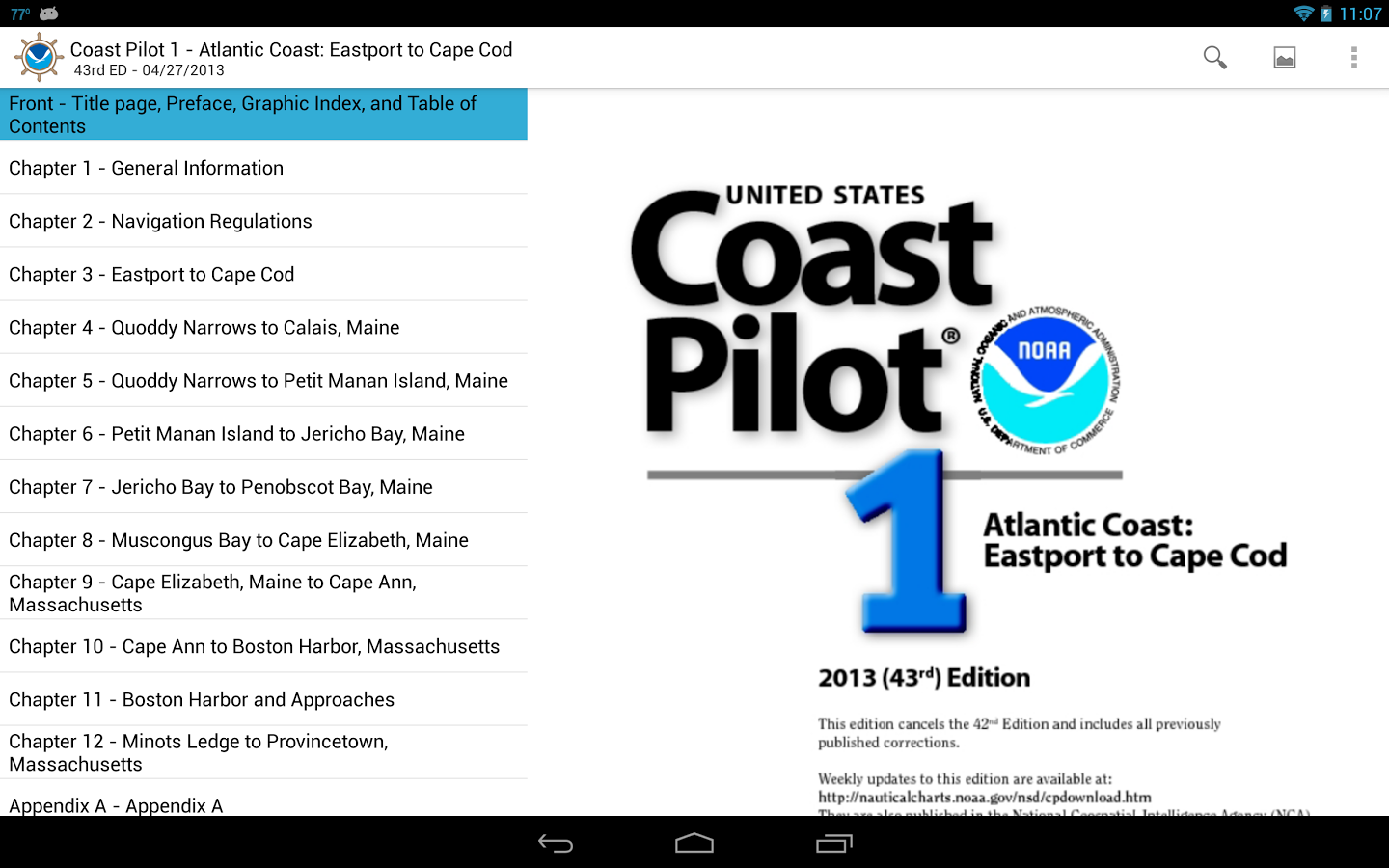
  • 5000 pages of NOAA Coast Pilot Books
  • Geotagged Coast Pilot Data
  • GPS real time tracking
  • SOG
  • COG
  • Measuring tool
The app is only available on Android tablets at this time. If there is enough interest they will expand the app to other devices and include  all NOAA charts and the 5000 pages of pilot chart data.

Pilot Charts can be downloaded and viewed within the app also. If you have never see pilot charts they are a very detailed narrative of the areas marine features.

They provide a wealth of supplemental navigation information for the NOAA charts.  The app geo references the pilot chart data to the charts.

Topics which are covered in the Pilot Charts include environmental factors of weather, climate, ice conditions, tides, water levels, currents, prominent coastal features and landmarks.

Specific information on vertical clearances, wharf descriptions, small-craft facilities, hazards, dredged channels and depths are also provided. Navigation services and regulations are also identified including pilotage, towing, anchorages, routes and traffic separation schemes, environmental protection, and other Federal laws.

The NOAA charts appear to be the raster version of the charts. These are the familiar paper looking charts that can be downloaded from NOAA for free.

There are many other charting app on the market that charge you to view the NOAA raster charts.  The raster charts are nice but I am a bigger fan of vector charts. If we want vector charts that is one comment we need to pass on to NOAA folks so future developments an include vector charts.

I do not own an Android tablet so I was not able to run through all the features.  I know there a ton of Android users out there, so download this app and let NOAA hear your comments.  Provide all your comment to NOAA and show your support for the continued development of this app on Android and iOS tablets and phones.

~~~ Sail On ~~~ /)
Mark

Saturday, July 27, 2013

PredictWind Forecast and Routing

Application: iPhone, iPad, iPod Touch iOS 4.2 or later
Function: Weather Forecasts, Tracking and Routing
Rating: *****
Cost: App is free, $4.99 to $18.99 for forecasts

PredictWind is an app that is a follow up to the already great wind forecast and weather routing website, www.predictwind.com.  They claim to be the worlds leader in wind forecasting and weather routing.  I have to say that they do have an impressive list of sailboat racers to back them up. 

The director of the company is Jon Bilger who has a very strong sailing resume himself. His experience as weather manager for the winning Americas Cup Alinghi syndicate spawned the idea of offering this high resolution wind forecast data to sailors around the world.

In June 2008 the company's first wind forecast product was released. The iOS PredictWind app was later released and updated to version 1.2.5 in June of 2012. They also have an Android version in the Google Play store if that is your flavor.

The high resolution wind modeling software provides 8 kilometer resolution for most of the coastal areas of  North America / Canada / Mexico / Caribbean,  Europe Australia New Zealand /South Pacific Asia , South America,  Middle East / India , South Africa Hawaii and  Alaska.

To get started all you have to do is create an account with Predict Wind with a user name and password. Once that is done you can start to add forecast areas by selecting Add Location in the top right of the main screen.  Here you can search for and select from the many points available around the world or select a point in your immediate area.  The free version only allows a one day forecast for one location.  If you upgrade to the paid version you get up to five days of forecasts for up to 6 points and access to the web based forecast and tracking tools also.

The main screen of the app is divided into nine different selections giving you the ability to look at the wind forecasts is a variety of ways. Additional selections are available for Tables, Graphs, Maps, Contours, Observations, Alerts, Routing, Trip Planning and Tracking.

Features:
  • Cell phone, tablet and web based forecasts, tracking and routing
  • Wind forecast for 520 forecast areas and 22,000 point around the world.
  • PWG/PWC and GFS/CMC models
  • Rain, cloud and temperature forecasts
  • Sea temperature forecasts
  • 8 kilometer and 1 kilometer wind data resolution.
  • Models are created every 12 hours and available twice daily.
  • Tabular and graphical wind forecasts displays
  • Real time wind observations
  • Customizable Alert page
  • Setting for English and Metric
  • GPS Tracking map lets your family and friends track your position.
  • Trip Planner shows the best day for departure
  • Weather Routing shows the fastest route with the forecast conditions
  • Highest resolution on the web.
  • Zooming feature on high resolution forecast maps 
Tables:

The Tables format show the forecast data in a tabular format. Both the PWC and PWG models are shown to see how they compare to each other.

Wind speed, direction and wave height are displayed. Other data includes wave direction, temperatures, rainfall and cloud cover.

Wind direction can be displayed as arrows or in a compass direction format.  Simply tap the Show Arrows button in the top right of the screen.

Graphs:

The Graphs selection allows you to display the forecast data in a graphical format. Wind Speed and Direction, Rainfall and Cloud Cover, Temperature and Pressure, and Height, Direction and Period of the waves are displayed on x/y axis.

Selections for one day or five days can be made by toggling the button in the top right of the screen. Both PWC and PWG models are again shown for comparison.

Multiple Graphs for different forecast locations can be added to the chart by selecting the forecast areas at the top of the graph.  This will give you an indication of the overall wind forecast for multiple locations along your trip.

In this chart we see Wind Speed in the top chart and panning down we can see the Wind direction in the lower chart.


Forecast Wind Maps:

The Maps display has options to show the forecast winds for a one and five day time period for a local, regional, offshore and a global view.

The wind arrows are color coded to depict the different wind speeds and directions. These are much like a GRIB wind file that we are use to seeing.

The slider bar at the bottom scrolls through the forecast and the time is shown in the top middle of the screen.  The user can tap the circle on the slider bar and move it left or right to select the earlier or later forecast times.

Either of the PWG or PWC wind forecast models can be shown by selecting the button in the top right of the display.  This feature is handy to see how the two models compare. They usually correlate very well.

Contours:

The Contour map displays are another way of depicting the differences of the forecast data.  Here we see wind speed for the Tortola, BVI area with different colors depicting the various forecast wind speeds.

The slider bar at the bottom is available to view the forecast time as desired.

The Show PWC button in the top right toggles the display between the two forecast models to see the difference in forecast data.

Observations:

The Observations tab bring up a map display of the real time wind speeds in the selected area.  The wind in the Caribbean appears to be pretty light at this time.

Tapping the Gear Icon in the lower right of the screen brings up options to select Wind Speed, Direction and Wind average times of  1, 5 and 15 minutes.

The Slider Bar at the bottom of the display allows you to slide back in time and see what the wind has been doing for the last 6 or 48 hours.

Tapping the Chart Button in the lower right of the screen brings up a nice display showing the wind speed and direction for the various reporting points in the area.

If I had been zoomed into a specific area on the chart it would have displayed fewer reporting points and made the chart easier to view.

This Chart is kind of busy because it is displaying so may locations.


Alerts:

Alerts can be customized and set up to create notifications when a forecasted variable reaches a selectable maximum or minimum value.  If the forecast reaches your selected value you will be notified via your phone or tablet with a notification.

Alerts can be set up per location and per forecast value up to five day in advance.  This would work great for a kite boarder or wind surfer who want to be alerted to a specific wind speed at various locations.  Simply put in your desired wind speed and PredictWind will notify you if it is forecasted to blow at that speed at that location.  If your a sailor it could alert you to a possible high wind forecast in your area giving you a heads up on the future conditions.

Routing:

The Routing option is where this app really starts to shine.  It is great having all of this weather data but how do I apply it to my trip in the coming days or week. The app takes all this forecast data and with a few inputs from the user as to where you are going and when, it then produces an optimized weather routing for your trip.

It can be modified for power or sailboats and can also take into account the polar diagram values of your sailboat too.  Select Fastest Time to make it to your destination the quickest or Comfort to avoid sailing upwind.

As an example, I created a quick routed from the east coast to Bermuda and onto the British Virgin Islands.  This is a popular Caribbean 1500 route that many take every fall. Waypoints can be added or deleted from your route with buttons on the top right of the screen. 

Start by selecting the forecast model and start time for your trip. The route can be optimized by selecting if you are a sailing or motoring vessel. Next hit the GO button and your route will be calculated for you.

It has predicted if I leave this afternoon that the 1500 mile trip will take about 8-9 days depending on which model you use. The two different red and blue lines are for the two different weather models.

Simply scroll down on this screen to show the tabular data produced from the calculations. Data includes wind speed, direction, angle, SOG, COG and time for your entire trip.  In addition, it provides a summary, route coordinates, swell and current data along the route. This is truly the most advanced weather routing app that I have seen for an iOS device.

It would be nice if there was a way to save and export the route to another charting app or chart plotter so it could follow this optimized weather route. That could possibly be an addition in a future release.

Trip:

The trip page is another powerful tool that will help you with your weather routing.  It is most useful for determining the best weather window to depart on your selected route in the next few days. It works in conjunction with the Route that you selected for your trip. Once you select a Route, that same route shows up on the Trip page.

Use the search box to search for and set the green start arrow and red destination arrow if needed.  It is recommended not to use waypoints because that will not allow the program to calculate the optimum route. Select the power or sail options under the Boat Polar button to customize the trip to your vessel. With the route selected, hit the GO button and it will calculate the departure conditions for the next 4 days and determine what the optimum path will be.

Scrolling down below the map will show additional data about the trip. The app calculates the max, min and average wind speeds, % time sailing upwind, downwind and reaching, and % time wind blows at certain wind speeds.

One feature that would be a nice addition to the Route and Trip functions is the option to save the trip and route calculations for later reference. This would allow running various trips with different start and stop times.  With the weather forecast data changing every 12 hours these saved files may become irrelevant very quickly. 

Tracking:

The Tracking section utilizes the GPS of your phone or tablet and records the path that you have traveled. If you are using your cell phone or tablet 3G connection your tracking information will be sent back to the PredictWind website. Your friends and family can login and view your tracking progress.

GPS tracking is enabled under the Account button in the top left corner of the app's main screen.  Select Enable or Disable GPS tracking here. Recorded tracks can be deleted at the bottom of the Tracking display.  Saving more than one track would be a nice additional feature in a future release.

Final Thoughts:

The app is nicely designed and very intuitive to use.  After a few minutes I was viewing forecast and setting up alerts with no problem at all.  I like that it provides both forecast models and allows you to easily view both of the data side by side to compare the two.  I am very impressed with user interface and thought that the Routing, Trip and Tracking features were an added bonus to an already great forecast app.

If your planning a long distance cruise or just going out for the day, the PredictWind App is worth adding to your smart phone or tablet.  It puts much needed real time and forecast weather data at your fingertips along with some powerful weather routing features. PredictWind is now my "goto" app for wind and weather forecasts and it has found a permanent place on my iPhone.

~~~ Sail On ~~~ /)
Mark

Sunday, July 14, 2013

DC Wire Sizer

Application: iPhone, iPad, iPod Touch iOS 5.1 or later
Function:
Rating:****
Cost: $2.99

I get a lot of requests from app developers to look at their products and possibly do a review on my blog.  This is a great free way for developers to reach a lot of people and get the word out. It is also a great way for me to become aware of new and useful apps.

I got a nice email from Julia asking me to look at her recently released app.  The company is called Dirty Dog Software and it appears it is named after their beloved black lab. I am a big dog lover myself and have a golden retriever who's name is Piper.  Piper thinks he is a human as you can see by the photo.


Julia and her friends spent the last year in the Bahamas cruising and exploring the many awesome anchorages of this island chain. They have also re-wired several boats over the years and found that most wire sizing programs and apps were just not providing what they needed. Out of that need came the DC Wire Sizer app.

First I am impressed that these women love sailing and do their own boat wiring. I am also impressed that they created their own iOS app to solve a problem many of us have.  I know a lot of guys who don't know electrical wiring basics so great job ladies!  I hope that did not sound sexist.  Their DC Wire Sizer app was developed and has been used and tested extensively by industry professionals and they feel it is the best and most complete app of it's type.

DC Wire Sizer offers two unique user interfaces. The Sizer Pro for the professional and the Sizer Wizard for the occasional novice user.  The Sizer Wizard is really what makes this app so easy to use. The Wizard walks you through the process by asking five easy questions to get the correct size of wire, voltage drop percentage and ampacity of the wire. What you don't see is all the data, research, calculations and engineering behind the scenes.

If your doing a lot of wiring on your boat, the app allows you to save the calculations with project names and wire type.  The app then can sum the length of the wire runs by wire type and size which can be used as a shopping list for your projects.  No other app offers these unique features and that's what makes it a winner.

Features:
  • Two calculating interfaces to choose from, Pro and Wizard
  • Create a wire description and assign it to a project
  • Select maximum voltage drop %, bundle size and insulation rating
  • Select a fractional amp, watts or enter a fractional volt for low voltage projects
  • Sizer Pro for specific calculations
  • ABYC E-11 and European ISO 10133 standards
  • 12, 24, 36 and 72 voltage inputs with optional custom voltages up to 500 volts
  • Select Voltage Drops 1, 3 and 10% with optional custom settings
  • Wire color codes
  • Conduit, inside or outside engine room settings
  • AWG, SAE and mm2 wire sizes
  • Units in meters and feet
  • One way, round trip and duplex wire length calculations
  • Extensive HELP section
  • Email Export of calculations
  • Built in Notes and installation tips and recommended tools
User Interface:

Wire Sizer user interface is nicely laid out with options for two different displays.  Sizer Pro or the Sizer Wizard can be selected according to which option you like. Wire Runs, Raw Materials, Help and About are the remaining pages.

The other pages and features of the app can be accessed on the bottom of the screen with the soft keys. 

The main user interface can be switched using the Action Menu button on the top left of the screen. Select this to toggle between the Sizer Wizard and the Sizer Pro displays, email content, export file and settings. 

Other menu settings let you select various other parameters used in the app. There are options for North American and European standards, wire gauge selection, measuring units in English or metric and Sizer Pro wire length calculation options.

The Sizer Pro screen allows you to select all the different parameters on one screen. Selections for Voltage, Insulation, Wire size, % voltage drop, Circuit load and Length are provided.

Convenient spin dials make it easy to select the desired parameters.

As  you make selections for the various parameters the app automatically calculates the proper wire size, ampacity and voltage drop.

Projects can then be save by selecting the Save button in the top right of the screen. Saved projects are then archived for future reference and use. Various parameters can be selected and set to create a shopping list for the required materials for the project. 

The Sizer Wizard is the other user interface. It was developed to basically walk the user through the process by asking 5 easy questions to determine the proper wire size for your job.

This Wizard is so easy and intuitive to use that even the most novice do-it-your-selfer can use it.  Julia and her developers have done all the research and calculations in the background and the user is provided with proper wire size for the job every time.

Each of these calculations can also be saved with a unique description and project name from a drop down list or typed in as needed. 


The Wire Runs button is where you can view all of your saved calculations and projects. Selection filters at the top of the screen let you view All Projects, Active Projects or Completed Projects

This page will help you keep all your wiring project organized and let you focus on the active projects that need to get done. Old projects can be archived and saved as completed. 

Entries include Boat and project name to keep you organized.  

To change any parameters of the projects simply select the Edit button in the top right of the screen.  You can then change the parameters by tapping the > arrow on the right.


The Raw Materials button provides a handy list of all your projects and the materials needed to complete them. 

This screen allows you to sort your project by All, Buy and Inventory.  This filtering lets you to see all projects, projects that you can do with wire you have on hand and projects that you need to purchase materials for.

The DC Wire Sizer app has taken the extra step to provide these added features. I like the idea of just taking my iPhone the store and having a list of materials already made up for me.

Lastly, the Help button provides a vast list of explanations for all the features of the app.  Additional resources, tips and technical notes are provided for the person who want to learn more about the calculations being made and the theory behind it.

My finals thoughts are that I find the app to be very accurate and easy to use.  It will definitely be on my iPhone and iPad.  I have done a lot of wiring projects in the past and always had to refer to table, books and diagrams to make sure I was getting it all correct.  DC Wire Sizer had taken all of the guess work out of designing a safe and effective electrical circuit with the proper wire size.

~~~ Sail On ~~~ /)
Mark

Saturday, June 29, 2013

Nobeltec Time Zero for iPad


Application:  iPad2, New iPad iOS 6.0 or later
Function: Marine Navigation and charting
Rating:****
Cost: Free, charts $39 to $49

NOBELTEC is a well known marine supplier of PC based charting software, hardware and marine charts. Their new app, Time Zero is their latest addition to a long line of successful products.  The same app is also marketed under the MaxSea Time Zero name. The only difference is that the MaxSea version can be provided in French.

The app was developed and targeted towards small boats who do mainly coastal cruising.  At first glance it has some of the basics but lacks the horse power to do some advanced features at this time. The app is free to download and comes with a demo chart for the Miami area. Charts can be purchased for $39 to $49 depending on what set you need. Coverage includes NOAA USA, Canada, Caribbean, Mediterranean West, Central and East, English Channel, United Kingdom and Western Europe.

Features:
  • NOAA Raster Charts
  • Range and Bearing Measuring feature
  • Satellite view
  • Tide height and currents
  • Track up or course up
  • Routes including customizable color and thickness with centering and XTE
  • Tracking including customizable track color and thickness
  • Redo/Undo
  • Customizable plotter display transparencies
  • Customizable units English or metric
  • Customizable boat length and icon size
  • Local Weather
  • COG
  • SOG
  • Course to Steer
  • Next Course
  • Time to Go
  • Distance to Waypoint
  • Cross Track Error
  • Velocity Made Good
  • Estimated Time of Arrival
  • Time to Arrival
  • Distance to Arrival
  • Pan, Zoom
  • Standard or 3D display
  • Customizable data display 
User Interface:

The user interface in made up of a chart display with many icons, tool bars, drop down menus and layers. 

There are a variety of ways to access the settings which are spread over several screens.  The user interface was a little confusing at times. I could not remember which Nav Bar or layer to view to turn on or off certain features. I suppose if I used it everyday I might remember where everything was. It would have been nice if the designers chose just one way to access all the data and settings.

Chart Slide Bar is located on the right side of the screen. It allows you to  zoom in and out on the charts.  You can do this with the slide bar or by tapping the + and - sign.

The Tool Bar runs across the top of the screen. This contains Do/Undo buttons, Track on/off and Route buttons, Ruler feature, Order and Manage charts and open Facebook. I like this tool bar and wish the author would have put all the settings and selections in this one location.

A Center Vessel Button is located on the top right side of the Tool Bar. Selecting this bring the vessel to the center of the chart.

The NavData section, on the left side of the screen, is where all navigation data is displayed.  This is by far the best feature of the app. It displays all the navigation data in either digital or analog displays.  Select the + icon on the top to add or delete displayed items. At the bottom of the box is a 3D feature which can be toggled to display the charts in a 3D perspective. To the right of that is the North up or Track up button.

The display can be minimized by tapping the down arrow on the top center of the NavData display.

On the top left side of the display is the NOBELTEC category menu. These are in fact settings for the the Ship and Track, Routes, Marks, Plotter, Units, General and About info.

Ship & Track settings let you customize the ship predictor vectors and recorded track color and thickness. 

Routes settings include color, thickness, Auto zoom, waypoint switching, switching radius and cross track error vales.

Marks  has settings for the appearance, color an size of the marks. 

Plotter options lets you configure the display settings.  Settings are available to show or hide the chart slide scalar bar. Transparencies for the NavData, Photo fusion and tides can also be set. The 3D tilt angle can also be customized here. 

The Units page lets you set the English or Metric unit for the display of data in the app. Data includes GPS position, Range, depth, height, Temperature, Boat speed, Wind speed, and Atmospheric pressure, 

The General options include boat length, boat icon size, demo mode, start up tips and disabling sleep mode. 

The About section includes App Usage Tips, License, Data usage and Chart memory. 


The Layer Tab can be accessed in the bottom right of the screen.

Simply swipe up to access setting for Satellite photo, Tide currents and heights, Tracks, Routes and Marks.

Select Satellite photo and 3D to give yourself a unique perspective of the coastal areas with the charts.

Charts:

Time Zero only supports the NOAA Raster charts. I am a big fan of Vector charts so this was somewhat of a let down. They have chosen to provide the app for free and charge for the charts.  With the purchase of charts expect to have about $39 to $49 invested for a working app with charts.  This is on par with some other premium charting apps.

Chart coverage is of the US, Canada, Caribbean, Mediterranean, English Channel, UK and Western Europe.  Chart coverage is far from world wide so make sure these cover your area before purchasing the charts.

One thing I did not like was that it does not support vector charts.  Hopefully they make these available in the future. Prices for the raster charts seemed high at $39-$49 compared to other apps that offer them for free.

It has some cool features like 3D, satellite maps overlays, tides and a little weather box.  It is missing several key features including Points of Interest, AIS, NMEA instrument data, GRIB weather data, Weather Radar, Routes and Tracks Import/Export.  This of course is version one so I can only hope we will see some of these additional features in the future.

Waypoints and Routes

Time Zero switches things up a bit by calling their waypoints, Marks. I wish they would have stayed with standard navigation terms.

You can create a Mark by tapping the screen anywhere on the chart. A pop up box will display showing the latitude and longitude with selections for Mark, GoTo, New Route and Move Boat.

If you select Mark it will create a marker(waypoint) on the screen. You can easily move these by tapping and holding your finger on the Mark or selecting the Move option. It will then highlight and allow you to drag it to a new position. Taping the Mark with your finger will display a pop up box showing location, range and bearing from your current location, SOG and time to the destination.

Creating Routes is done easily by tapping the screen and selecting the New Route selection. Continue tapping points on the screen to create your route marks or waypoints.  To activate a Route simply select the point in a Route and select Activate or select the Route Boat icon in the top middle icon menu. To deactivate a Route deselect the Route Boat icon in the top menu or select the route and select Stop Nav.

Time Zero has made it easy to visually keep track of all your Routes.  There is no list of Routes or Waypoints in the app. All marks and routes are displayed on the charts. Deactivated routes are shown with a Blue Ships Wheel with an arrow. Simply tap this icon to expand the Route to show the marks in the route. If you create a lot of Routes and Marks the chart might become pretty congested with icons.

Tracking

A Real time track of your position is captured if you select the Track icon in the top center menu. It is the boat with a red arrow on it. I will continue to record your track until it is toggled off. I was not able to find a setting to view or delete tracks.

Winner or Loser?

Time Zero has a winner with it's introduction to the iPad marine navigation app market.  It has some cool feature like the NavData display and 3D satellite views but it falls short in a few areas.  When I compare it to apps in a similar price range I was expecting a few more bells and whistles.  It does not have NMEA data, AIS, GRIB files, weather radar, vector charts, night mode, Points of Interests or import/export capabilities.

It is only their first release so I look forward to many of the feature being added in the future releases. 

If your a basic coastal cruiser this app will be a great addition to your Marine navigation tool box.

~~~ Sail On ~~~ /)

Mark